How AI Reads and Routes Faxes in Clinics
Fax & Document Automation
Fax & Document Automation
AI converts fax images to text, extracts patient data, matches charts, and routes documents into EMR workflows; staff handle exceptions.
AI converts fax images to text, extracts patient data, matches charts, and routes documents into EMR workflows; staff handle exceptions.

Fax is still a daily intake channel in many U.S. specialty clinics, and the main problem is manual handling. As of early 2026, 71% of healthcare organizations still had not automated fax workflows, and clinics can lose about 3 hours a day just sorting and routing faxes. When referrals sit for 48–72 hours, scheduling can stall and some patients may book elsewhere.
Here’s the short version: AI fax triage turns fax images into text, figures out what each document is, pulls out key details, matches it to the right patient and provider, and sends it into the right EMR queue or task. When the system is not sure, it sends the fax to staff for review instead of guessing.
If I were explaining the article in plain English, I’d boil it down to this:
Step 1: Read the fax with OCR after cleaning up pages, cover sheets, and blanks
Step 2: Use language models to identify document type and intent
Step 3: Pull data like name, DOB, MRN, insurance ID, referral reason, and auth status
Step 4: Match the fax to the right patient chart and clinician
Step 5: Route it to the right team, task, or EMR workflow
Step 6: Send low-confidence or incomplete items to a staff review queue
Step 7: Pilot the process with clear KPIs like accuracy, exception rate, and time-to-schedule
The core idea is simple: AI does the repeatable intake work first, and staff focus on the faxes that need judgment. That can cut backlog, shorten intake delays, and make referral and results handling easier to track.
The rest of the article walks through that process from incoming fax image to final EMR routing, plus how a clinic can pilot and roll it out.
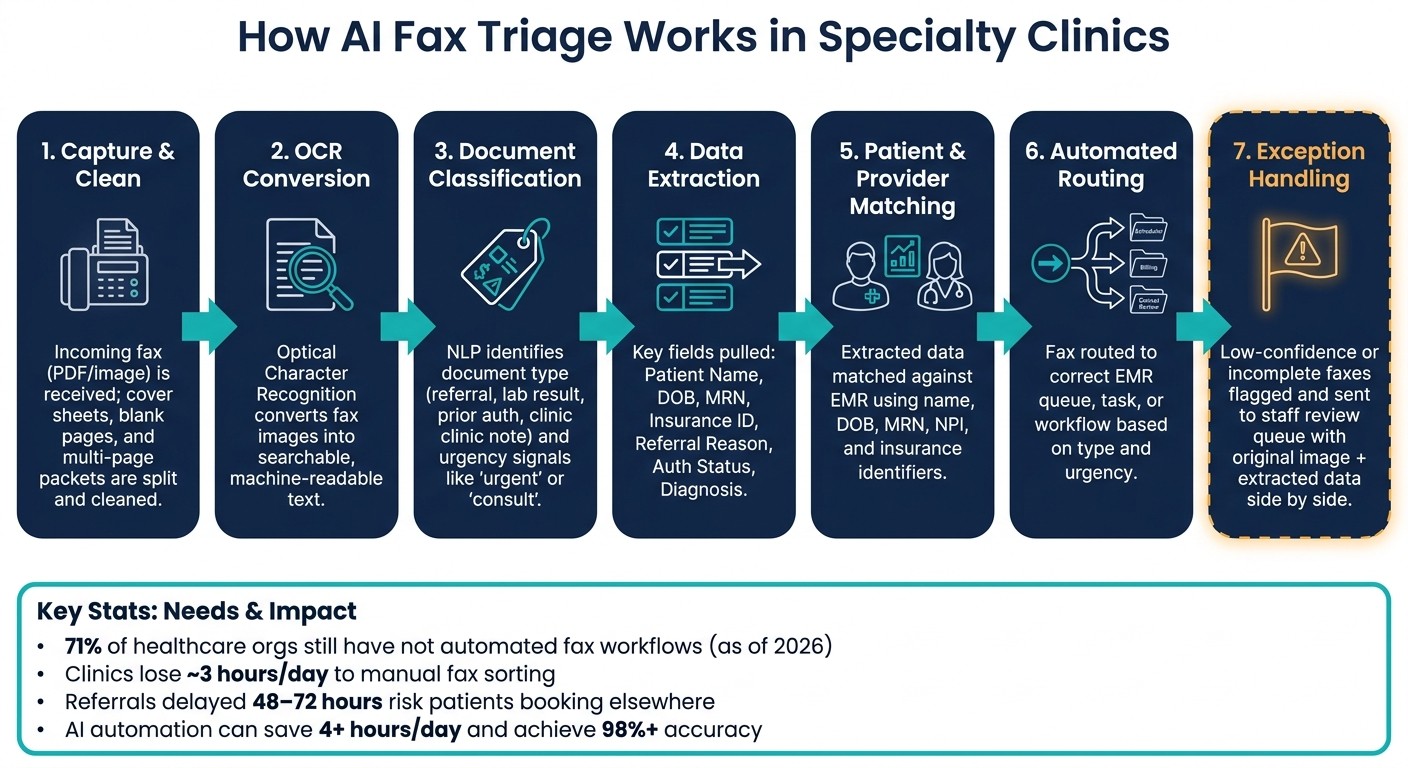
How AI Reads, Categorizes & Routes Clinic Faxes: 7-Step Workflow
eFax AI: Automatically Route Referrals, Lab Results & Medical Documents | ModuleMD
Step 1: How AI reads incoming faxes
The first job is simple: turn each fax image into text a system can read.
OCR starts with the image itself. If the fax isn't readable as text, nothing else works well.
Capture, clean up, and split incoming fax pages
When a fax comes in, the system takes it in as a PDF or image file. It then breaks apart multi-page packets, cover sheets, and blank pages before OCR runs.
That cleanup matters. A messy packet can throw off the rest of the workflow, so the system sorts the pages first instead of treating the whole fax like one big document.
Use OCR to convert fax images into searchable text
Optical Character Recognition (OCR) converts scanned pages - including printed text, stamps, and handwritten notes when legible - into searchable text. After that, the system scans for fields like patient name, date of birth (DOB), Medical Record Number (MRN), insurance ID, ordering provider, dates of service, and diagnosis details.
Some pages won't be clear enough to trust. Those exceptions stay in a human review queue.
Use NLP to identify document type and intent
Once OCR turns the page into text, NLP figures out what that text is saying. It separates clinical documents from administrative ones and spots routing cues such as "urgent", "consult", or "follow-up" so the fax goes to the right place.
Type | Examples | Result |
|---|---|---|
Clinical | Lab results, imaging reports, consult notes | Flag for physician review or urgent follow-up |
Administrative | Prior auth forms, insurance cards, intake forms | Route to billing or authorizations queue |
Referral | Inbound PCP referrals, specialist requests | Match to patient/provider; flag missing info |
If the model isn't sure, it sends the item to a staff review queue instead of taking a wild guess. That keeps work moving without risking bad routing or bad data. Once the text is cleaned up, the system can classify the fax and pull out the key fields.
Step 2: How AI categorizes faxes and pulls out key data
Reading the text is only the start. After OCR and NLP process the page, the system still has to figure out what the document is and pull out the details staff need.
Classify each fax by document type
Before a fax goes anywhere, the system places it into a document category. Common categories include referrals, clinical results, authorizations, signed orders, and clinic notes. Each page gets its own category and filing path.
That matters because the category controls the next step. A referral shouldn't land in the same place as a signed order, and a clinic note shouldn't be treated like an authorization.
Match the fax to the right patient and provider
After classification, the system matches the fax to the right patient chart and clinician. It does that by checking combinations of patient details like name, date of birth (DOB), Medical Record Number (MRN), phone number, address, and insurance identifiers against the clinic's EMR.
For providers, it looks at NPI numbers, clinic addresses, and provider directory data to identify the referring or ordering clinician. If those identifiers don't line up, or some of them are missing, the fax doesn't get shoved into the wrong chart. Instead, it goes to a staff review queue with the original document and the extracted data shown side by side.
Extract structured data and flag low-confidence cases for review
Once the match is made, the system pulls out the fields intake and front-office teams use every day:
Data Category | Key Fields Extracted | Purpose |
|---|---|---|
Patient Identity | Name, DOB, MRN, phone, address | Match document to the correct chart |
Insurance | Payer, policy ID, coverage status | Verification and billing preparation |
Clinical | Referral reason, diagnosis, medications, test results | Clinical triage and specialty routing |
Administrative | Auth number, approval status, referring provider | Workflow tracking and compliance |
Exceptions | Confidence score, missing field flags | Routing to human review queues |
The system also assigns a confidence score to each extraction. If a page is hard to read, identifiers are missing, or demographics clash, it triggers an exception flag. Then the item moves to a review queue with the original image and the extracted data.
Those outputs then feed the right EMR task, queue, or referral workflow.
Step 3: How AI routes faxes into clinic workflows and the EMR
Once the system classifies the fax and pulls out the key data, it can decide where the document should go next - and what needs to happen because of it.
Route by content, urgency, and required action
At this stage, routing stops being a filing job and becomes a workflow decision. The system looks at the document’s content, urgency, and the action it calls for. After classification, each fax is sent to the workflow that fits its purpose and priority.
Fax Type | Action Triggered |
|---|---|
New Referral | Create encounter and task for scheduler |
Lab/Imaging Result | Flag for clinical review and notify ordering provider |
Prior Auth Approval | Update status to "Approved" and notify billing |
Denial Notice | Create follow-up task for billing coordinator |
Attach documents and create tasks inside the EMR
Routing only matters if the EMR action happens automatically. The system writes structured data into the right EMR fields, attaches the document to the right chart or encounter, and creates the right task inside the clinic's current worklists. That way, staff can handle the fax inside the workflows they already use.
If confidence is low or the document is incomplete, the fax goes to an exception queue for staff review.
Connect fax intake to referral tracking and after-hours processing
The last part is watching what happens after the fax enters the clinic workflow. Faxes that come in overnight or on weekends are processed and routed automatically, so staff walk into organized queues instead of a stack of unsorted documents.
That helps keep referral handoffs clean and cuts the risk of patients falling through the cracks between intake and scheduling.
How to set up AI fax triage in a U.S. specialty clinic
Once your AI can read and route faxes with a high hit rate, the next step is rollout planning.
Map your current fax volume, document types, and routing rules
Take one week and map how fax work moves through your clinic today. Look at daily fax volume, where those faxes come from, which document types slow down scheduling, billing, or clinical review, and who handles each step. That baseline helps you set confidence thresholds before the pilot.
Start with the document types that most often slow action. Referrals are often a smart place to begin because stalled referrals can hold up scheduling and revenue. If you know your current average turnaround time for each document type, you'll have a clean baseline to compare against after deployment.
Run a pilot with confidence thresholds, exception queues, and staff review
Begin by running AI triage alongside your current manual process. The AI classifies and routes faxes, and staff check those outputs against what they would have done by hand. This gives you room to spot misclassifications early and tune confidence thresholds before you switch on full automation.
Staff should work from the exception queue. Instead of touching every fax, they focus on exceptions and incomplete documents. That human review step helps keep accuracy high without bogging down the workflow.
Track three pilot KPIs:
Classification accuracy
Exception rate
Time-to-schedule
Once exception volume stays low, move from parallel review to full automation.
Roll out fully and track ROI
After classification accuracy and workflow fit are confirmed, go fully live and track the numbers that matter most: hours saved per day, referral follow-through, and time-to-schedule.
Diagna is HIPAA-compliant and built for independent U.S. specialty clinics with 5–50 providers, including cardiology, pulmonology, orthopedics, pain management, infusion centers, radiology centers, and rheumatology. It works with your current EMR and doesn't require workflow changes. In live deployments, Diagna has shown 4+ hours of staff time saved per day, 20+ hours saved per week, and 98%+ AI accuracy on document processing.
FAQs
How accurate is AI fax triage?
AI-powered fax triage can reach over 94% accuracy when processing clinical documents. In practice, that’s often seen as being on par with human performance, which can help cut down document-handling mistakes.
With advanced extraction and classification, the system can sort, categorize, and route incoming faxes with a high level of consistency. For clinics, that means more confidence when automating repetitive admin work.
What happens when the AI is unsure?
When the AI isn't sure about a document, human oversight helps keep things accurate and dependable.
Diagna handles classification and data extraction automatically, but staff check the results before anything moves forward. Documents go straight into existing work queues, so teams keep the final say while the workflow stays smooth, secure, and aligned with clinical standards.
How long does a clinic pilot usually take?
A clinic pilot for AI integration usually runs 60 to 90 days.
That window gives clinics enough time to test the system with a manageable number of documents, collect baseline data, and get staff feedback before deciding whether to extend the pilot or roll it out more broadly.
Related Blog Posts
Fax is still a daily intake channel in many U.S. specialty clinics, and the main problem is manual handling. As of early 2026, 71% of healthcare organizations still had not automated fax workflows, and clinics can lose about 3 hours a day just sorting and routing faxes. When referrals sit for 48–72 hours, scheduling can stall and some patients may book elsewhere.
Here’s the short version: AI fax triage turns fax images into text, figures out what each document is, pulls out key details, matches it to the right patient and provider, and sends it into the right EMR queue or task. When the system is not sure, it sends the fax to staff for review instead of guessing.
If I were explaining the article in plain English, I’d boil it down to this:
Step 1: Read the fax with OCR after cleaning up pages, cover sheets, and blanks
Step 2: Use language models to identify document type and intent
Step 3: Pull data like name, DOB, MRN, insurance ID, referral reason, and auth status
Step 4: Match the fax to the right patient chart and clinician
Step 5: Route it to the right team, task, or EMR workflow
Step 6: Send low-confidence or incomplete items to a staff review queue
Step 7: Pilot the process with clear KPIs like accuracy, exception rate, and time-to-schedule
The core idea is simple: AI does the repeatable intake work first, and staff focus on the faxes that need judgment. That can cut backlog, shorten intake delays, and make referral and results handling easier to track.
The rest of the article walks through that process from incoming fax image to final EMR routing, plus how a clinic can pilot and roll it out.
How AI Reads, Categorizes & Routes Clinic Faxes: 7-Step Workflow
eFax AI: Automatically Route Referrals, Lab Results & Medical Documents | ModuleMD
Step 1: How AI reads incoming faxes
The first job is simple: turn each fax image into text a system can read.
OCR starts with the image itself. If the fax isn't readable as text, nothing else works well.
Capture, clean up, and split incoming fax pages
When a fax comes in, the system takes it in as a PDF or image file. It then breaks apart multi-page packets, cover sheets, and blank pages before OCR runs.
That cleanup matters. A messy packet can throw off the rest of the workflow, so the system sorts the pages first instead of treating the whole fax like one big document.
Use OCR to convert fax images into searchable text
Optical Character Recognition (OCR) converts scanned pages - including printed text, stamps, and handwritten notes when legible - into searchable text. After that, the system scans for fields like patient name, date of birth (DOB), Medical Record Number (MRN), insurance ID, ordering provider, dates of service, and diagnosis details.
Some pages won't be clear enough to trust. Those exceptions stay in a human review queue.
Use NLP to identify document type and intent
Once OCR turns the page into text, NLP figures out what that text is saying. It separates clinical documents from administrative ones and spots routing cues such as "urgent", "consult", or "follow-up" so the fax goes to the right place.
Type | Examples | Result |
|---|---|---|
Clinical | Lab results, imaging reports, consult notes | Flag for physician review or urgent follow-up |
Administrative | Prior auth forms, insurance cards, intake forms | Route to billing or authorizations queue |
Referral | Inbound PCP referrals, specialist requests | Match to patient/provider; flag missing info |
If the model isn't sure, it sends the item to a staff review queue instead of taking a wild guess. That keeps work moving without risking bad routing or bad data. Once the text is cleaned up, the system can classify the fax and pull out the key fields.
Step 2: How AI categorizes faxes and pulls out key data
Reading the text is only the start. After OCR and NLP process the page, the system still has to figure out what the document is and pull out the details staff need.
Classify each fax by document type
Before a fax goes anywhere, the system places it into a document category. Common categories include referrals, clinical results, authorizations, signed orders, and clinic notes. Each page gets its own category and filing path.
That matters because the category controls the next step. A referral shouldn't land in the same place as a signed order, and a clinic note shouldn't be treated like an authorization.
Match the fax to the right patient and provider
After classification, the system matches the fax to the right patient chart and clinician. It does that by checking combinations of patient details like name, date of birth (DOB), Medical Record Number (MRN), phone number, address, and insurance identifiers against the clinic's EMR.
For providers, it looks at NPI numbers, clinic addresses, and provider directory data to identify the referring or ordering clinician. If those identifiers don't line up, or some of them are missing, the fax doesn't get shoved into the wrong chart. Instead, it goes to a staff review queue with the original document and the extracted data shown side by side.
Extract structured data and flag low-confidence cases for review
Once the match is made, the system pulls out the fields intake and front-office teams use every day:
Data Category | Key Fields Extracted | Purpose |
|---|---|---|
Patient Identity | Name, DOB, MRN, phone, address | Match document to the correct chart |
Insurance | Payer, policy ID, coverage status | Verification and billing preparation |
Clinical | Referral reason, diagnosis, medications, test results | Clinical triage and specialty routing |
Administrative | Auth number, approval status, referring provider | Workflow tracking and compliance |
Exceptions | Confidence score, missing field flags | Routing to human review queues |
The system also assigns a confidence score to each extraction. If a page is hard to read, identifiers are missing, or demographics clash, it triggers an exception flag. Then the item moves to a review queue with the original image and the extracted data.
Those outputs then feed the right EMR task, queue, or referral workflow.
Step 3: How AI routes faxes into clinic workflows and the EMR
Once the system classifies the fax and pulls out the key data, it can decide where the document should go next - and what needs to happen because of it.
Route by content, urgency, and required action
At this stage, routing stops being a filing job and becomes a workflow decision. The system looks at the document’s content, urgency, and the action it calls for. After classification, each fax is sent to the workflow that fits its purpose and priority.
Fax Type | Action Triggered |
|---|---|
New Referral | Create encounter and task for scheduler |
Lab/Imaging Result | Flag for clinical review and notify ordering provider |
Prior Auth Approval | Update status to "Approved" and notify billing |
Denial Notice | Create follow-up task for billing coordinator |
Attach documents and create tasks inside the EMR
Routing only matters if the EMR action happens automatically. The system writes structured data into the right EMR fields, attaches the document to the right chart or encounter, and creates the right task inside the clinic's current worklists. That way, staff can handle the fax inside the workflows they already use.
If confidence is low or the document is incomplete, the fax goes to an exception queue for staff review.
Connect fax intake to referral tracking and after-hours processing
The last part is watching what happens after the fax enters the clinic workflow. Faxes that come in overnight or on weekends are processed and routed automatically, so staff walk into organized queues instead of a stack of unsorted documents.
That helps keep referral handoffs clean and cuts the risk of patients falling through the cracks between intake and scheduling.
How to set up AI fax triage in a U.S. specialty clinic
Once your AI can read and route faxes with a high hit rate, the next step is rollout planning.
Map your current fax volume, document types, and routing rules
Take one week and map how fax work moves through your clinic today. Look at daily fax volume, where those faxes come from, which document types slow down scheduling, billing, or clinical review, and who handles each step. That baseline helps you set confidence thresholds before the pilot.
Start with the document types that most often slow action. Referrals are often a smart place to begin because stalled referrals can hold up scheduling and revenue. If you know your current average turnaround time for each document type, you'll have a clean baseline to compare against after deployment.
Run a pilot with confidence thresholds, exception queues, and staff review
Begin by running AI triage alongside your current manual process. The AI classifies and routes faxes, and staff check those outputs against what they would have done by hand. This gives you room to spot misclassifications early and tune confidence thresholds before you switch on full automation.
Staff should work from the exception queue. Instead of touching every fax, they focus on exceptions and incomplete documents. That human review step helps keep accuracy high without bogging down the workflow.
Track three pilot KPIs:
Classification accuracy
Exception rate
Time-to-schedule
Once exception volume stays low, move from parallel review to full automation.
Roll out fully and track ROI
After classification accuracy and workflow fit are confirmed, go fully live and track the numbers that matter most: hours saved per day, referral follow-through, and time-to-schedule.
Diagna is HIPAA-compliant and built for independent U.S. specialty clinics with 5–50 providers, including cardiology, pulmonology, orthopedics, pain management, infusion centers, radiology centers, and rheumatology. It works with your current EMR and doesn't require workflow changes. In live deployments, Diagna has shown 4+ hours of staff time saved per day, 20+ hours saved per week, and 98%+ AI accuracy on document processing.
FAQs
How accurate is AI fax triage?
AI-powered fax triage can reach over 94% accuracy when processing clinical documents. In practice, that’s often seen as being on par with human performance, which can help cut down document-handling mistakes.
With advanced extraction and classification, the system can sort, categorize, and route incoming faxes with a high level of consistency. For clinics, that means more confidence when automating repetitive admin work.
What happens when the AI is unsure?
When the AI isn't sure about a document, human oversight helps keep things accurate and dependable.
Diagna handles classification and data extraction automatically, but staff check the results before anything moves forward. Documents go straight into existing work queues, so teams keep the final say while the workflow stays smooth, secure, and aligned with clinical standards.
How long does a clinic pilot usually take?
A clinic pilot for AI integration usually runs 60 to 90 days.
That window gives clinics enough time to test the system with a manageable number of documents, collect baseline data, and get staff feedback before deciding whether to extend the pilot or roll it out more broadly.
Related Blog Posts
Get Started With Diagna
AI staff for the administrative work that keeps healthcare teams from patient care.

Essential Pages
Diagna Healthcare Technologies, Inc. All Rights Reserved
Get Started With Diagna
AI staff for the administrative work that keeps healthcare teams from patient care.
Essential Pages
Diagna Healthcare Technologies, Inc. All Rights Reserved
Get Started With Diagna
AI staff for the administrative work that keeps healthcare teams from patient care.
Essential Pages
Diagna Healthcare Technologies, Inc. All Rights Reserved